
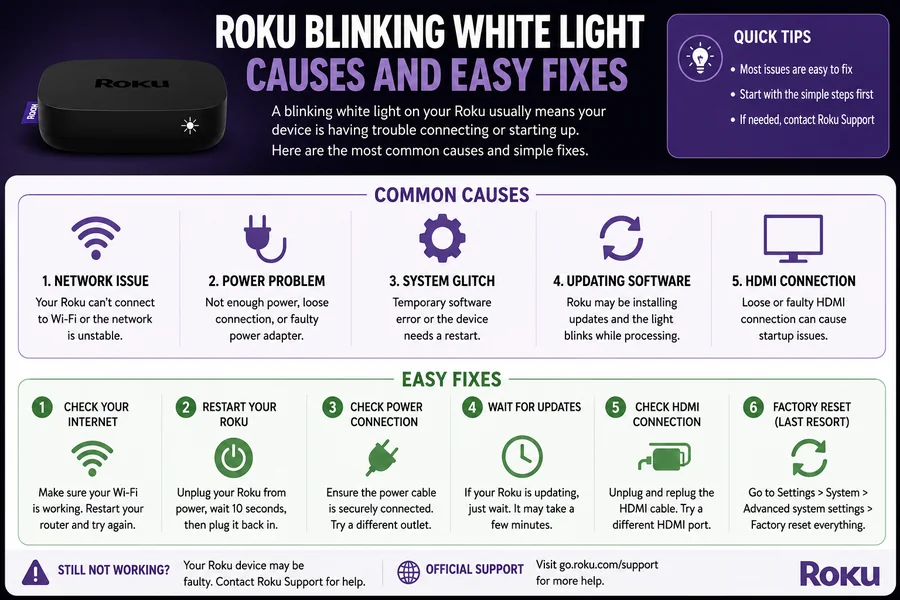
Roku Blinking White Light Causes and Easy Fixes
As part of the modern entertainment landscape, streaming devices have become popular, and Roku is one of the most popular for watching movies, television shows and online content. But, sometimes, the user has technical difficulties that prevent them from enjoying the content. Roku Blinking White Light is one of the most common problems that users experience.
A flashing white light on a Roku indicates that the system is attempting to send a message about power, software, network or hardware problems. Although the issue may seem irritating at first, the bright side is that many cases can be fixed in no time with no professional fixes.
The flash may be seen when starting up the computer, updating software or trying to connect to the internet. In some cases, the device could freeze, restart multiple times, or not show anything on the TV screen! It is helpful for users to understand the potential causes in order to troubleshoot the issue.
Technology challenges frequently appear to be more complex than they are. Loose cables, weak internet connections, outdated software, and temporary glitches in the system are primary causes of Roku blinking light problems. In most cases, users can simply take a few precautionary measures and resume their streaming without any problems.
What Does the Roku Blinking White Light Mean?
A Roku device’s white indicator light is a status light. The light can be solid or flash for a short time while starting and running normally. Ongoing flashing, though, generally means that the device is unable to operate normally.
Blinking lights are often caused by the Roku device attempting to boot-up or connect to a network. The white light may stay flashing if the process is taking the wrong amount of time and/or if an error occurs.
Sometimes the issue arises due to software updates. It can get stuck while installing or may not even restart. During the Update, power outages can result in brief software problems.
One more common cause is the lack of power supply. Stable power is essential for the proper functioning of Roku devices. If there is not enough electricity supplied to the system by weak USB ports, damaged adapters or faulty cables, the indicator light will start to blink.
The problem can also occur due to internet connectivity issues. As Roku is an online streaming device, poor internet reception or problems with the router can impact the startup process and performance.
While hardware failure is rare, it can result in hardware issues that can cause intermittent blinking.
Usual Causal Factors for the Problem
There are several different times that the Roku white flashing light appears. To determine the exact cause, the users are guided to the right type of troubleshooting.
A frequent problem is power supply instability. A lot of Roku users hookup their Roku devices straight to the tv’s USB ports and not wall adapters. Certain TV USB ports are not powerful enough to keep devices powered on, particularly during updates or high speeds streaming.
Internet issues are also a significant one. Poor Wi-Fi coverage or a temporary outage can cause Roku to not connect as intended. If the device fails to start up, the white light will keep flashing.
The software glitch also often plays its part in the issue. As a smart gadget and a computer, streaming devices can sometimes have bugs or sometimes they can freeze. Upgrades or installations may be interrupted or incomplete, causing the system to be stuck during start-up.
However, HDMI connection troubles can as well become confusing. Even when the Roku is ON, a loose or damaged HDMI cable can cause the TV not to receive a Roku signal.
Another reason may be an over heating. All Roku devices heat up during use, and over time, sub-optimal ventilation can impact performance. Items inside containers or close to other electronic devices may get to high a temperature.
In very special cases, the hardware can be damaged or worn out parts may stop the normal start up. These problems are more likely to occur after years of heavy usage with older equipment.
Roku Blinking White Light: How to Fix it
There are a few common Roku blinking light problems that can be easily fixed. The simplest solutions to problems are generally the first ones to go through the mind.
The first thing to do is to restart the device. Unplug the Roku from the wall and then plug it back in again after at least 30 seconds. The process eradicates temporary glitches and enables the system to run back to normal.
There’s also a need to check the power source. If there are power problems, it is best to use the official Roku power supply rather than a TV USB port. Insufficient electricity may be supplied by the faulty cables or poor quality adapters.
Checking the HDMI connections can also be helpful. Ensure that the HDMI cable is securely connected to the Roku device and TV. Also, if the television has signal problems try to change the HDMI port on the TV.
If the device continues to flash, then turning the Internet router back on may help. Disconnect the router and reconnect it after approximately 1 minute. After the internet connection has been stable, power the Roku device back on.
Some users may need to perform a factory reset. Many Roku devices have a reset button that will reset the device for about 10 to 20 seconds when the device is on. This will reset software to the default setting and eliminate software problems, but will require resetting of account information and preferences afterwards.
A good additional measure is a cool device. Make sure that the Roku is ventilated and not in confined spaces next to heat-generating electronics.
Make sure to avoid future Roku issues
By taking steps to prevent future Roku blinking light problems, preventive maintenance can enhance the performance of the device over time.
Reliable power sources are one of the best preventive measures. Always connect with the original power supply or equivalent high quality power supply. Ideally, avoid flaky or loose USB connections.
It is also important to keep the device software up to date. Roku periodically publishes updates for performance, security and stability. Keep software up-to-date and helps to minimize software issues.
A consistent Internet connection results in better streaming picture quality and device reliability. You can minimize connection dropouts by moving the router closer to the Roku or by using more powerful Wi-Fi gear.
Frequent restarts can also ensure that the device runs smoothly. Periodic reboots remove temporary memory problems and restart system operations.
Over time electronics can suffer from dust and over heating. Excessive heat buildup is prevented by ensuring good ventilation and cleaning around the Roku device. Don’t place the device on heat-generating equipment or cover the device.
Quality HDMI cables can also help enhance reliability. Sometimes, damaged or poor quality cables cause signal problems which seem to be similar to device problems.
If a Factory Reset is Required
The factory reset is usually a last resort since it will delete saved settings and accounts. They can, however, resolve intractable software issues that simpler methods of troubleshooting aren’t able to.
A factory reset puts the Roku device back to its original settings. This process will clear out corrupted settings, failed updates and glitches in the system which can lead to blinking lights that do not go away or an inability to start the computer.
Users should exhaust all other troubleshooting options prior to resetting. Things to try before losing data include restarting the device, checking cables and reconnecting to the internet.
To reset, press and hold the reset button on the Roku device. Hold down the button for a few seconds, while plugging the device into power. Typically the indicator light will start to act differently once the reset process starts.
Users will need to sign-in to streaming accounts and reconnect the Roku to Wi-Fi after reset. The setup process may take some time, but most devices will work normally when reset.
If the light keeps on flashing even after a factory reset, it could be a hardware damage or internal component failure problem.
When to Contact Roku Support
Many of the blinking white light problems are simple to resolve, but some require professional help or replacement devices.
If you have tried troubleshooting multiple times and the Roku device still fails to start, it may be due to hardware failure. Over time, internal circuits are susceptible to damage due to the power surges, heat or the ageing components.
It is also advisable for the users to contact the support team if the device keeps on rebooting, overheating beyond limit or exhibiting some odd behavior after factory reset operation.
Depending on the device age and purchase conditions, warranty can help replace defective units. Some users might also require advanced troubleshooting steps which are specific to their respective Roku models, and customer support can help them with this.
Sometimes it is more feasible to upgrade to a newer Roku than it is to repair an older Roku. Today’s streaming devices can also perform better, be faster and more compatible with streaming services.
Users should check all cables, adapters and Internet connections are working correctly before replacing the device. Problems can occur with external accessories that may seem like hardware failures.
Final Thought
A Roku Blinking White Light issue can appear frustrating, but it is frequently the result of very simple issues that are associated with power, Internet connection, software problems, or cable connection. Thankfully, numerous users can resolve the issue swiftly without being technically inclined.
Try to restart the device, plug in the power adapter, unplug the HDMI cable and even reboot the router and the like issues.Restart the device, plug into a power adapter, unplug the HDMI cable, and then restart the router and so on, can solve the problem. It also helps prevent problems in the future by keeping the device up-to-date, well-ventilated and plugged into reliable power sources.
Sometimes technology has glitches, particularly with technology where software updates and internet connectivity are crucial. By interpreting the meaning behind the light, users can better understand and act accordingly, avoiding unnecessary stress.
If troubleshooting fails to address the problem, a factory reset or professional assistance might be needed. Roku devices can provide years of reliable, streaming performance with proper maintenance and care.
FAQs
Why is my Roku blinking a white light?
A blinking white light usually indicates issues related to power supply, internet connectivity, software problems, or startup errors.
How do I stop the white light from blinking on Roku?
Restarting the device, checking power connections, reconnecting HDMI cables, and restarting the router often solve the issue.
Can a weak power source cause Roku problems?
Yes, insufficient power from weak USB ports or damaged adapters can cause startup and performance issues.
Does a factory reset fix Roku blinking problems?
A factory reset can fix many software-related issues by restoring the device to default settings.
Why does my Roku keep restarting?
Frequent restarts may result from software glitches, overheating, unstable power supply, or hardware problems.
Can overheating affect Roku performance?
Yes, excessive heat can cause system instability, freezing, and blinking indicator lights.
Should I use a TV USB port to power Roku?
Using the official Roku power adapter is usually more reliable than powering the device through a TV USB port.
When should I contact Roku support?
You should contact Roku support if troubleshooting steps fail or if the device continues malfunctioning after a factory reset.
